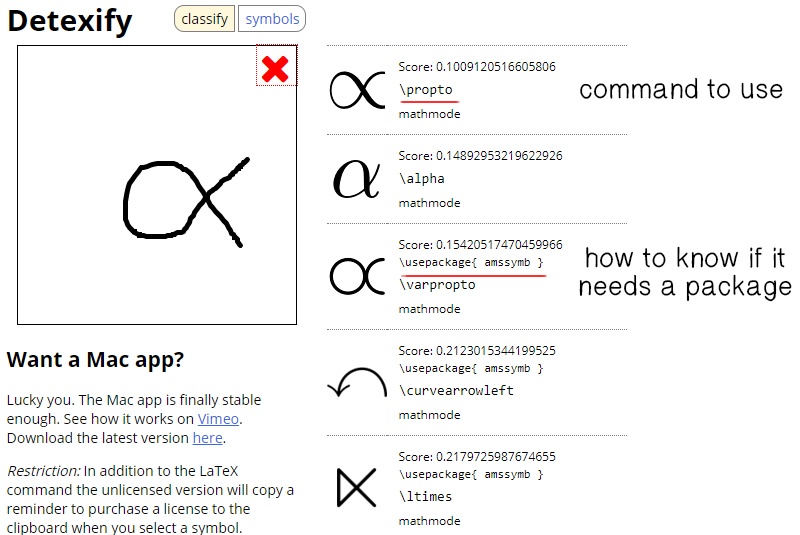
The following is largely inspired by this. We also second the recommendation of Detexify for finding arbitrary TEX symbols.
The easiest way to learn LATEX is by viewing others' code and output side-by-side! (This post is relatively long, so if you click "info" to see the source code here, it may be helpful to use Ctrl+F: there will always be "searchable" tags or keywords.)
Inline formulas in dollar signs; displayed formulas in "backslash brackets" (don't use double-dollar signs), as follows: ∑i=0ni=2n(n+1) (inline) or i=0∑ni=2n(n+1).(displayed)
Also, you may want to use display LATEX when in inline mode. This can be done by putting \displaystyle in your latex as follows: i=0∑ni=2n(n+1)
You can also do the reverse; putting inline text when you are in display mode by using \textmode as shown:
Greek letters: α,β,…,ω for lower case and Γ,Δ,…,Ω for upper case.
For superscripts and subscripts, compare xi2, xi2, xi2, (xi)2, vpqr′′′, vpqr′′′, vpqr′′′, vpqr′′′.
(General pointer: when in doubt, use curly braces to be safe!)
Parentheses, brackets, braces: (2+3), [4+4], {a+b}, ∣c+d∣, ∣u+v∣, ∥c+d∥, ∥u+v∥, ⟨x+y⟩, ⌊x+y⌋, ⌈x+y⌉. (Note that curly braces need the extra backslashes! See (14) for more on this point.)
You can scale these too: compare ⌊ππππ⌋ to ⌊ππππ⌋.
Underbraces and overbraces - these can be helpful when writing long, complicated equations.
x2+y2side lengths=hypotenuse lengthz2
Sums and integrals: compare ∑1nx, ∑1nx, ∑12nx, ∑12nx, ∑i=12ni. The following work similarly: ∏, ∫, ⋃, ⋂, ∬.
Fractions: There are two ways to make these. Compare 32, ba, ba, b+1a+1, b+sra+yx, 1+1+2111
Fonts:
Normal math font: ABCDEFGH (uppercase) or abcdefgh (lowercase).
For "blackboard bold": Compare QRZ3, QRZ3, QRZ3.
For boldface: ABCDEFGH (uppercase) or abcdefgh (lowercase).
For "typewriter": ABCDEFGH (uppercase) or abcdefgh (lowercase).
For roman: ABCDEFGH (uppercase) or abcdefgh (lowercase).
For "calligraphic": ABCDEFGH.
For script letters: ABCDEFGH.
For "Fraktur" (old German style) letters: ABCDEFGH or abcdefgh.
Spaces and plain text: Compare ab, ab, ab, ab, ab, ab. Generally, for "normal" (plain) text, consider a+1 spaces are still weird1but noticeable.
Radical signs: Compare x3, 3x2, (x2)1/3.
Sufficiently special functions: Consider limx→0, sinsinxx, maxx∈R, logx, x→0limcos(min(exp(ln(arctan(x)))).
For more special symbols and notations, see here or here. Consider
<<>>≤≥==<(>)×⋅÷±∓.(In particular, no need to use asterisks for multiplication!)
Ellipses: 1,2,…,5 vs. 1+2+⋯+5 vs. 1,2,⋯,5 vs. 1+2+…+5 ("dots" will usually automatically give the more appropriate of "ldots" and "cdots").
Set stuff: ∪∩∖⊂⊆⊊∈∈/∅∅.
Logic: ∧∨¬∀∃⊤⊥⊢⊨.
Mappings: →←⇒⇐↦.
Binomial coefficients: (2kn+1) or (2kn+1) (similar to "frac" vs. "over").
Not bad, but with all the latex, it's a little hard to read. The equal sign is everywhere, and it's hard to see if you said x2=4x−4 or x2−4x=4.
However, there is a solution: the align environment.
To use the align environment, first wrap everything you want to align up with
\begin{align}
and
\end{align}
in the front and back respectively.
Then, in front of each thing that you want to align in a vertical direction downwards, you put a &.
For example, if you wanted to align all the equal signs together, you would put an & in front of each equal sign.
Second step is to divide each separate line by two backslashes, side by side. This tells the latex compiler that you are starting a new line.
Just to make sure, when using the align environment, make sure everything is in one pair of dollar signs or brackets, not separate dollar signs or brackets.
For example, the above example solution, when put into the align environment and having the & and double backslashes added correctly, looks like this: x−1x2x2x2x2−4x+4(x−2)2x−2x=4=4(x−1)=4x−4=0=0=0=2
In this guide I will show you how to make tables: 1hinicemeet2theretoyou
System of equations: {x+y=2x2+y2=2
Matrices: 1000010000100001
and other things, using one useful command in LATEX: The array environment.
To use this, you must know a couple of its components. The first component is how to create it. To do that, type in:
\begin{array}
In your LATEX code.
The next component is something that tells the compiler how many columns you want your array, how each element is centered in its column, and where to place vertical divider lines. This component looks something like this:
{l|cr}
This component goes right after the first component, as follows:
\begin{array}{l|cr}
The "l" stands for "left", and it tells the compiler to center the elements in that specific column to the left (just like in Microsoft Word). For example, these elements, with the component {|l|l|l}, are all centered at the left: hihelloblahblahblahleftspacecreator←
The "c" stands for "center", and the "r" stands for "right". In the below array, the column on the left has its elements centered to the left, and ditto for the centered elements in the center, and right. The component for this one looks like {|l|c|r|}.
left←middle⌣¨right→
Finally, the "|" (SHIFT+the key above the enter key and below the backspace) key, if you haven't figured out, adds a vertical line between the two columns that it separates. For example, an array with the component {ccc} looks like:
147258369
While one with component {c|cc} looks like:
147258369
Now on to actually entering your elements. Elements are inserted row by row: first, we go through the first row from left to right, then the second row, and so on, until we finish with the final row. Each separate element in a row is divided by the "&" (ampersand) key, and to signify going to the next row, we put two backslashes.
For example, look at this code:
1 & 2 & 3 \ 4 & 5 & 6 \ 7 & 8 & 9
Its output is this:
147258369
Note that the elements 1,2,3 in the first row are divided by two "&"'s. You do not need to place a "&" at the end. To enter elements into the next row, we put the two backslashes.
To end an array, we put the following component at the end:
\end{array}
To add horizontal lines, we use the command
\hline
To insert a horizontal line between two rows, put the command behind of the two backslashes separating the rows. For example, this code:
\[
f(x) = \left\{
\begin{array}{lr}
x & : x \le 1 \\
x + 6 & : x > 1
\end{array}
\right.
\]
Also, keep in mind that if you want to view source code for LATEX without the need to hit "edit", you can right-click the latex code to view the code used.
No one knows. It's been around since the Big Bang and scientists are still trying to figure out its origins. All we know is that it makes Expii look like a beautiful autumn morning.
Okay, that's all a lie but who cares. I honestly googled "What is LaTeX" and I put myself to sleep it was so boring.
Just know that it is a way to write out math expressions. Kind of like coding but not.
How do I use LaTeX?
Using LaTeX is real simple. You just need $! That's right, using LaTeX requires cold, hard cash. Or your parent's credit card!
Okay, that's all a lie. You actually just need to use the dollar sign key.
You just put your LaTeX code(??) between two dollar signs and voilà you LaTeX-ed.
Here's the number three: 3.
Here's the number three as LaTeX: $3$⇒3.
$ Versus $$
There's actually two styles of using LaTeX: put it between one set of dollar signs or put it between two sets of dollar signs.
Using one set of dollar signs (like the 3 example above) puts the LaTeX on the same line as the text.
Using two sets of dollar signs centers the LaTeX on the line below.
Here's the number three: 3.
Here's the number three with one set of dollar signs: $3$⇒3
Here's the number three with two sets of dollar signs: $$3$$⇒3
LaTeX Placement
It doesn't really matter where you place the dollar signs. Let's take a look at some examples.
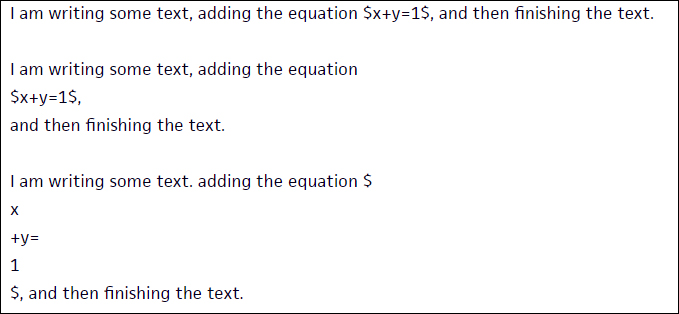
Here's a phrase written three different ways.
They all come out to be:
I am writing some text, adding the equation x+y=1, and then finishing the text.
The same is for the double dollar signs.
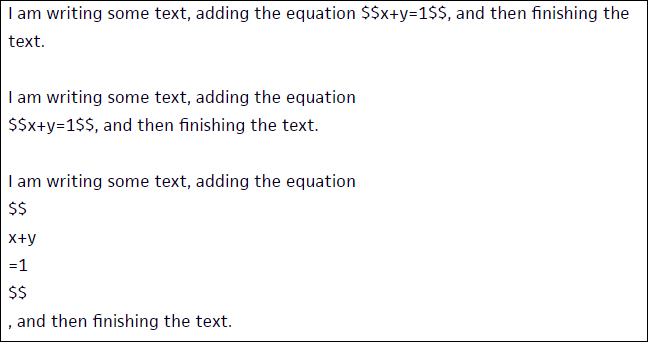
Here's a phrase written three different ways.
They all come out to be:
I am writing some text, adding the equation
x+y=1
, and then finishing the text.
LaTeX Dangers
Sometimes LaTeX can be a real pain. If it senses two dollar signs it puts everything in-between into LaTeX.
Suppose we wanted to write a word problem dealing with money.
It looks fine. But those two dollar signs mess everything up. This comes out to be:
Jane had 3.10tospendongumballs.Gumballscost0.30 each. How many gumballs can she buy?
Yeah. Not pretty anymore.
One of the reasons is that LaTeX doesn't like actual words, or spaces. Any word you write in LaTeX will get weirdly spaced. This is because it thinks each letter is it's own separate variable.
In the next section I'll go into detail on how you work around that mess above.
Don't put punctuation after a double dollar sign command. It will put it on its own line and it looks bad.
Don't write words in LaTeX. They get all weirdly spaced and it doesn't recognize spaces. Example: 3meters looks really dumb.
Okay now let's learn how to do cool things with LaTeX!
Superscript: x2
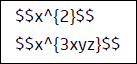
Superscript is really easy to use. You just need to use ^{ }.
Let's look at an example.
This comes out to be:x2x3xyz
Subscript: x2
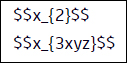
Subscript is similarly easy. You just need to use _{ }.
Let's look at an example.
This comes out to be:
x2x3xyz
Fractions
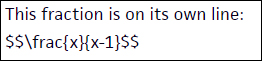
Fractions require you to use the command \frac{}{}. The first set of brackets is for the numerator and the second is for the denominator.
Here's an example of a fraction with double dollar signs.
This becomes:
This fraction is on its own line:
x−1x
Here's an example of a fraction with single dollar signs.
This becomes:
This fraction is on the same line as the text:
x−1x
Notice that this fraction appears much smaller! A fraction inside double dollar signs will always be larger than a fraction inside single dollar signs.
However, if you want to make a fraction larger, simply change \frac to \dfrac.
So \dfrac{x}{x-1} becomes x−1x.
Roots
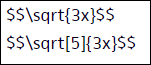
To make a square root symbol you just need to use the command \sqrt{ }.
To make an nth root you use the command \sqrt[n]{ }.
Here's an example of the different kinds of roots.
This becomes:
3x53x
Symbols
Here is a list of symbols and how to use them:
Division symbol is \div: ÷
Multiplication X is \times: ×
Multiplication dot is \cdot: ⋅
Less than or equal to is \le: ≤
Greater than or equal to is \ge: ≥
Plus or minus is \pm: ±
Approximately is \approx: ≈
Not equal to is \ne: =
Infinity is \infty: ∞
Pi is \pi: π
Percent is %: %
Degree is ^{\circ}: ∘
A space is ,: heyspace
A tab is \quad: heytab
Sized Parentheses
Parentheses are pretty easy ( ). But sometimes they aren't big enough. For example:
(21)
That looks pretty dumb.
To fix this we can use \left( and \right) at the beginning and end respectively. This adjusts those parentheses so that they fit the text inside them.
Here's an example.
This becomes:
(21)
New Line
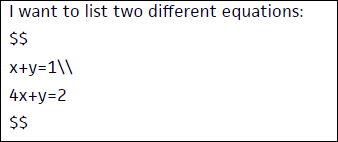
To start a new line in LaTeX you just need to place double backslashes: \\
This would mainly used with double dollar signs.
Let's look at an example.
This comes out to be:
I want to list two different equations:
x+y=14x+y=2
Update: This now makes the Latex really small. To work around this, don't use \\ Instead, put each new line between double dollar signs.
You can also put the latex inside the command
begin{gather}......end{gather}
Text
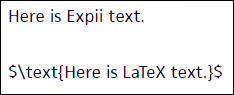
Remember when I said don't use text in LaTeX. Well still don't...unless you use the text command \text{}.
It will make the text look different than Expii's text though.
Let's look at an example.
This comes out to be:
Here is Expii text.
Here is LaTeX text.
Trig and Log
You can type out cos and sin and ln in LaTeX but it can look bad.
cos(3x)
Not terrible though. But to make it look nice just put a backslash in front: \cos(3x)
cos(3x)
This rule applies to all the trig functions, log and natural log, and limits.
Misc.
Trying to use a symbol but not sure what it would be called to look it up? Well check out this awesome website, Detexify.
It allows you to draw the shape or symbol and then gives you the LaTeX code! Some symbols require a separate package to use. Sadly, this means you CAN'T use it on Expii.
When using a dollar sign in a word problem, it's best to use the LaTeX command instead. This way it won't accidentally section into LaTeX.
Text inside the \text{ } command WILL NOT wrap to the next line. So don't write large portions inside the command. If you can, write any text outside of LaTeX.
Now that we understand some basic LaTeX, it's time to go into the EXTRA stuff. I'm talking, aligning, tables, matrices, and colors!
Aligning
Aligning is very useful when writing out how you work through an equation. The command is simple.
\begin{align}
Write here.
\end{align}
When you write inside this command, you use & to denote where you want each line to align at.
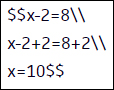
For example, let's look at something without align.
This becomes:x−2=8x−2+2=8+2x=10
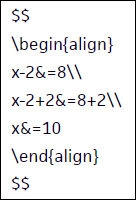
Suppose now we wanted to align each line at the equal sign, =. To do this we write the same thing inside the align command, and put an & before each equal sign.
For example:
This would become:x−2x−2+2x=8=8+2=10
Cases or Piecewise
To make cases or piecewise you can use the cases command.
\begin{cases}
Write here.
\end{cases}
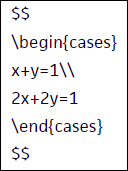
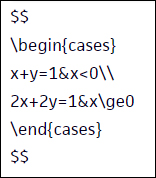
Suppose we wanted to list 2 equations in a system. We could write:
This becomes:{x+y=12x+2y=1
Suppose we wanted to list two equations but with rules as to when to use each. We can use the & symbol in the cases command to make an indent. We could write:
This becomes:{x+y=12x+2y=1x<0x≥0
Matrices
To make a matrix you can use the command:
\begin{bmatrix}
Write here.
\end{bmatrix}
Here, bmatrix stands for bracketed matrix. Inside this command, you put the first cell's contents and then use & to move to the next cell in that ROW. If you want to move to the next COLUMN, you use double backslashes, \\ .
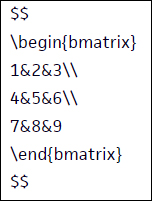
Suppose we wanted a square matrix with the integers from 1 through 9. We can write:
This becomes:147258369
Arrays and Tables
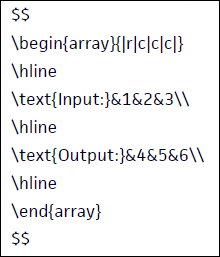
This is probably the most complicated of the LaTeX commands, but not by much. We use begin{array} and end{array} but there's some other key components. It's easier to show you some sample code and explain it.
This comes out to be:Input:Output:142536
The command will start with begin{array} and end with end{array}. Nothing new here.
Next comes {|r|c|c|c|}. This is how you want the text to be aligned. Each letter is a different column.
r = right
c = center
l = left
Notice also that there's a straight line, | , between each. This makes a straight vertical line before or after a specific column. I put one before and after each so the whole table is divided up.
Caution: Don't mix up the lowercase L and the straight line: l and |
The next new command is \hline. This is just a horizontal line. You can use this command outside of arrays as well. The horizontal line auto adjusts to the length of what's above it and below it. I put three in: at the top, middle, and bottom. Therefore, my table has a horizontal line at the top, middle, and bottom.
Then I write out what I want each cell in the first row to be. This is the same as the matrix command. Each & symbol moves you to the next cell. Use \\ to move down to the next row.
Boxed
You can always box any text you want with the command \boxed{ }.
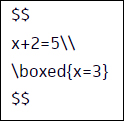
Suppose we want to box our answer.
This comes out to be:x+2=5x=3
Color
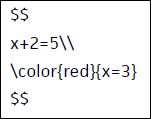
You can also make different texts different colors with the command \color{color}{ }.
Suppose we want to make our answer red.
This comes out as:x+2=5x=3
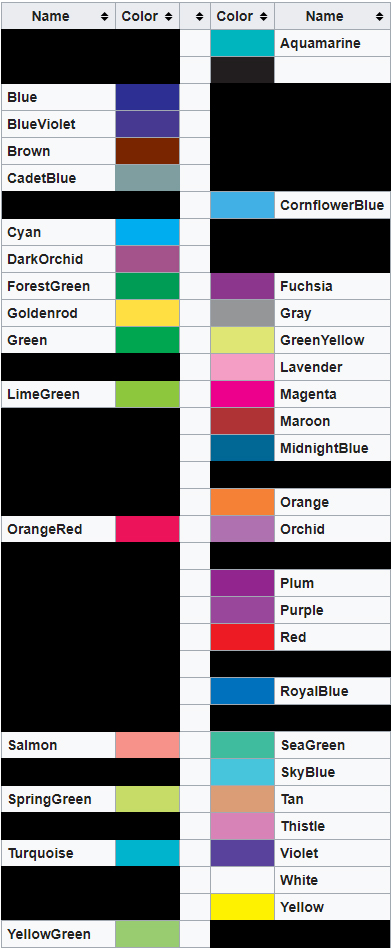
Here's a list of colors that work on Expii.
Strikethrough
We can use the command \cancel{ } to make text get a strikethrough. This is especially helpful if you want to show things cancel in a fraction or something.
Suppose we want to show that the 2's cancel in this fraction.
Alex’s Mansplanation Guide to ExpiiPart 1 - Writing an Explanation
Expii is cool and nice. There are two different parts which we will look at in more detail: explanations and problems.
Explanations
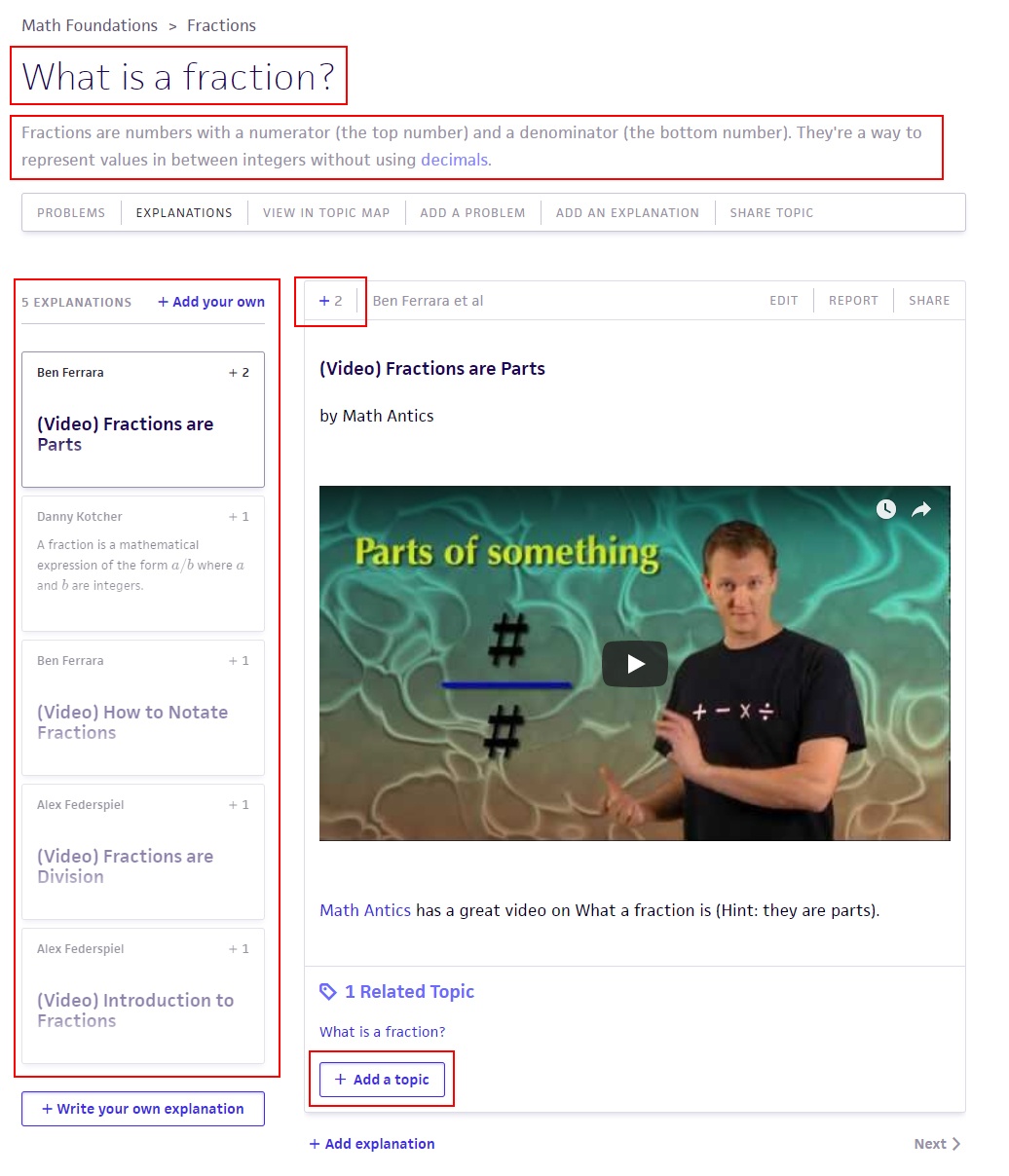
Whenever you go to a topic, you're brought to the explanation page.
At the top we have the topic node that you're in and below that a brief description of the topic.
To the side we have the list of explanations written in this topic, the selected one is what is being displayed to the right of it.
Next to that is the "+2". This is the upvote. If the plus is blue than you haven't yet given it an upvote.
At the bottom is the "Add a Topic" button. This allows you to link a specific explanation to multiple topics. Suppose you write an explanation about fractions, decimals, and trig functions. Then you can write it under fractions and tag it under the decimal and trig functions sections as well.
There's also 4 different ways on this page to write your own explanation in the topic. Can you find them all?
Writing an Explanation
When you click any of the 4 "add an explanation" buttons you're brought to the editor.
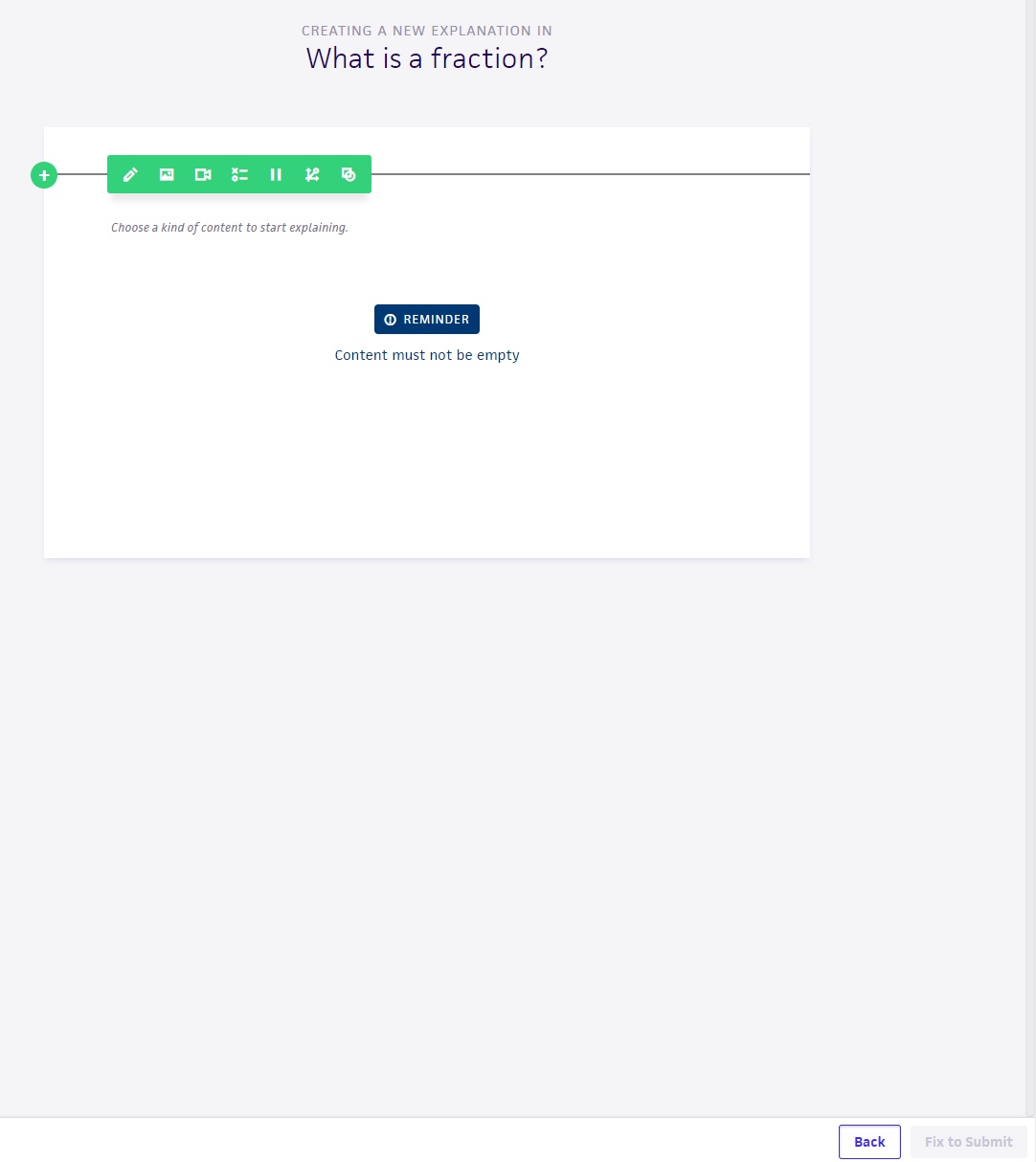
The editor won't let you submit something until you meet the criteria it asks. As you can see, it tells you with the "Reminder" box what you need to do. In the bottom corner the "Submit" button is greyed out and says "Fix to Submit".
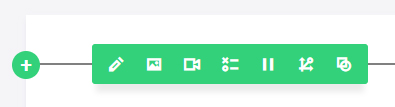
At the top is a green bar with the different types of tools you can use.
From left to right we have:
Pencil: Brings up a blank text box which you can write in or insert LaTeX.
Photo: Insert a photo or a gif
Video: Insert a YouTube video
Question: Add a question block
Pause: Add a break where the user must hit "Continue" to keep going
Graph: Insert a graph. I HAVE NO IDEA HOW TO USE THIS FUNCTION
Shape: Insert a shape. I HAVE NO IDEA HOW TO USE THIS FUNCTION
You can use any number and any combination of these in an explanation. Once you select one and fill something in, the "Submit" button turns blue and says "Save and exit".
Pencil - Textbox
The pencil tool just brings up a blank text box in which you can write or use LaTeX.
To submit with a textbox, the textbox must NOT be empty.
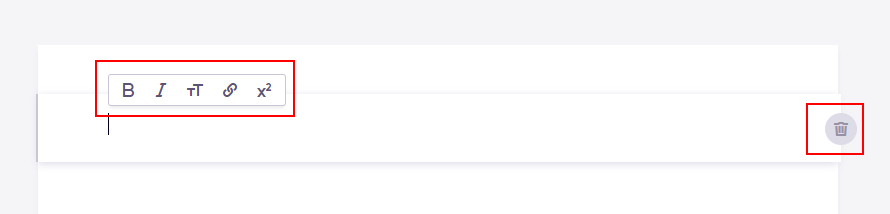
As you can see on the right we have a trashcan. This allows you to completely delete this block.
At the top is 5 different things/styles you can add to your text.
B: Makes the text bold.
I: Makes the text italic.
tT: Makes a header.
Link: Let's you insert a link as text.
x2: Let's you insert an equation.
Bold
To make text bold you can highlight the text and click the B. You might notice that this places your text between two sets of asterisks. This is how to tell the editor to make text bold. You don't even need to hit the button, just place text between two sets of asterisks.
This comes out as:
Here's my bold text.
Warning: Make sure there is no blank spaces between your text and the asterisks. This causes the bold not to work.
Italic
To make text italic you can highlight the text and click the I. You might notice that this places your text between one set of asterisks. This is how to tell the editor to make text italic. You don't even need to hit the button, just place text between one set of asterisks.
This comes out as:
Here's my text italicized.
Warning: Make sure there is no blank spaces between your text and the asterisks. This causes the bold not to work.
Header
To make your text into a header you can highlight the text and click the tT. You might notice that this places three pound signs in from of the text. This is how to tell the editor to make text into a header. You don't even need to hit the button, just place the text after three pounds.
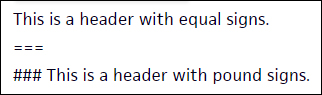
The second way to make a header is to place three equal signs underneath the text you want.
Notice both of these come out the same.
This is a header with equal signs.
This is a header with pound signs.
CAUTION: If you use the # header you must have a space above it (doesn't matter if it has text or is blank). If you use the = header you must have a space below it (doesn't matter if it has text or is blank.
Link
To make text into a link you can highlight the text and click the Link symbol. This brings up a set of brackets [ ] followed by a set of parentheses ( ). The brackets are where you write the text you want to make a link and the parentheses are where you put the URL.
This brings up a box in which you can write out an equation and it places the LaTeX version of it into your text. I won't go into detail on how to use this since in the later sections I explain how you can use LaTeX which is easier in my opinion.
Numbered List - Not a Button
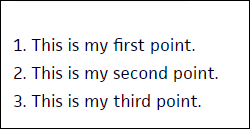
To make a numbered list just use 1. and then 2. and so on.
There isn't much of a difference:
This is my first point.
This is my second point.
This is my third point.
But there is one. For starters, it indents a bit, spaces out the different points, and aligns all the text behind the number.
CAUTION: Make sure you place a blank space before you start making a numbered list.
Bullet Points - Not a Button
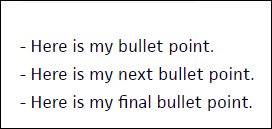
To make bullet points you just need to use -
This becomes:
Here is my bullet point.
Here is my next bullet point.
Here is my final bullet point.
CAUTION: Make sure you place a blank space before you start making a bullet list.
Indent Text - Not a Button
To indent text you just need to place > before the text.
This comes out as:
Here is my text in which I want to indent. I will write a bit more so you can see that it idents the whole chunk.
CAUTION: Make sure you place a blank space before you start an indent.
Image, video, and pause button are all very self explanatory.
The question box is the same the one used in writing a problem so I will wait to explain it there.
One difference though is you can have as many question blocks as you want in an explanation. In a problem there is only one question block.
Graphing
As I stated above, I have no idea how to use those graphing programs. Instead, I use a really nice website, Desmos.
You can then export the graph as an image and then upload it to Expii using the image button.
When putting in an image, first make sure it's Creative Commons, and place the link in the textbox below it. You can use the Link button to make text like "Source" lead to where the image came from.
If an image is too large, Expii will scale it which can sometimes make it look funky.
Speaking of images, don't use an image with huge heights. No one wants to have to scroll to view a single image. 300 pixel height is usually a good size. (Don't worry if it's over or under, it's not a big deal.)
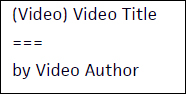
When putting in a video link make a header in the following form:
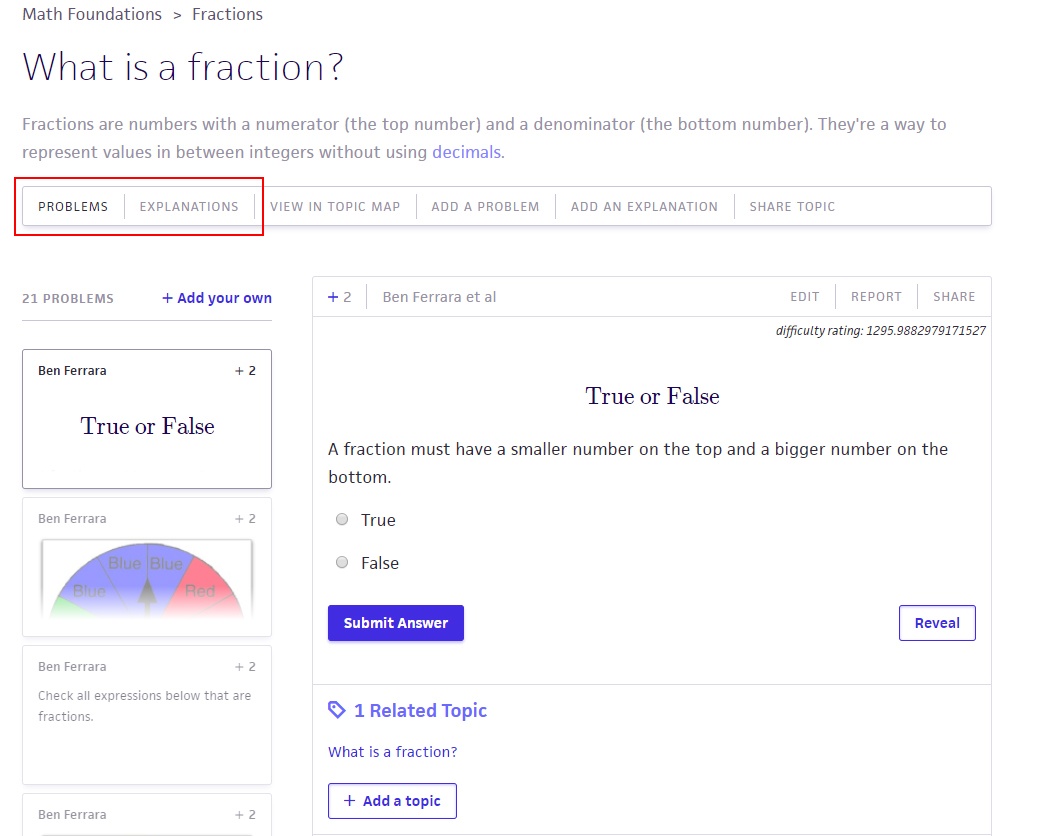
You can jump to the problems page of a topic by clicking "Problems" in the top left corner. You can also jump back to explanations at any point.
Below every question is a blue box that says "+ Add Solution"
This takes you to a solution adding page which operates the same as an explanation. Anything you write will appear under the specific question you are on.
Writing a Problem
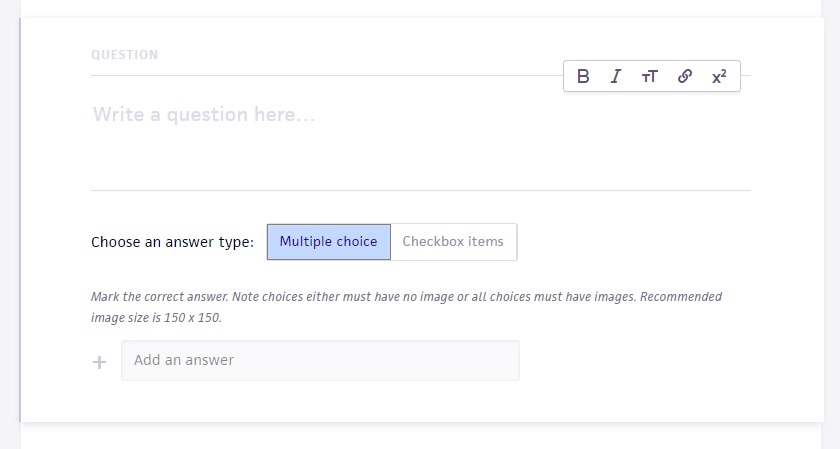
When you go into the editor to add a problem you're brought to this:
Your question is written in the big open block. You can use any of the textbox styles that were explained in the Explanations section.
You can also add any other style block ABOVE the question block. So your question can have a block of text explaining it above it, or a picture, etc. The only thing you can't put above it is another question.
Furthermore, THE QUESTION MUST BE THE LAST BLOCK.
Making Answers
You can have any number of choices as answers. Usually try to keep it between 4 and 6.
Also try to always have AT LEAST 3 different choices. If you do a True or False you can do true, false, and not enough information is given.
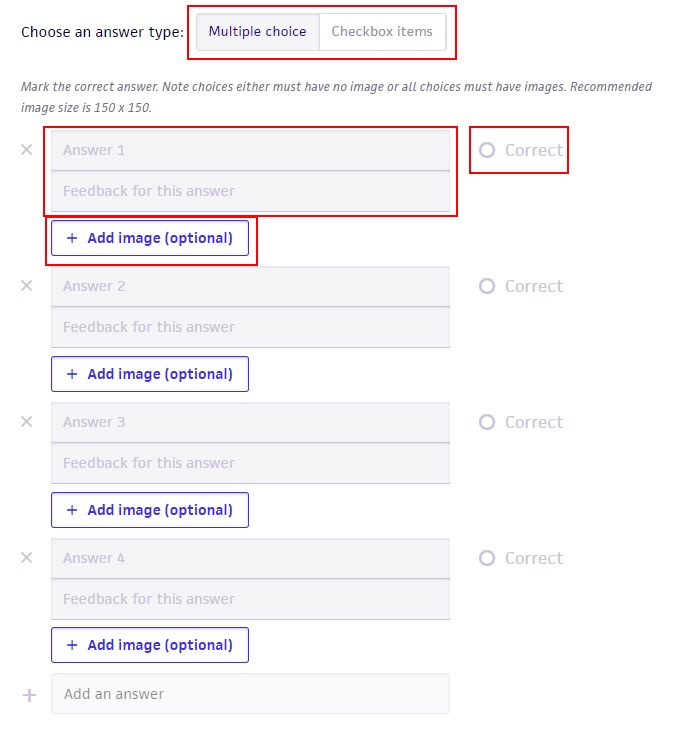
At the top there's two different styles: Multiple Choice and Checkbox Items.
Multiple Choice: User only selects one choice as answer.
Checkbox Items: User selects one to multiple choices as answer.
Once you click the box "Add an answer" it will make an answer choice box for you.
You put the answer you want inside the "Answer" section. You can even use LaTeX in this part.
The "Feedback" box is text that will pop up if the user selects that answer. If it's a wrong answer it could give a hint. If it's a correct answer you can pose an open ended question to make them think.
To the side is the circle in which you select which one is the correct answer. Only one can be selected for Multiple Choice and one or more for Checkbox. You must select one in order to submit the question.
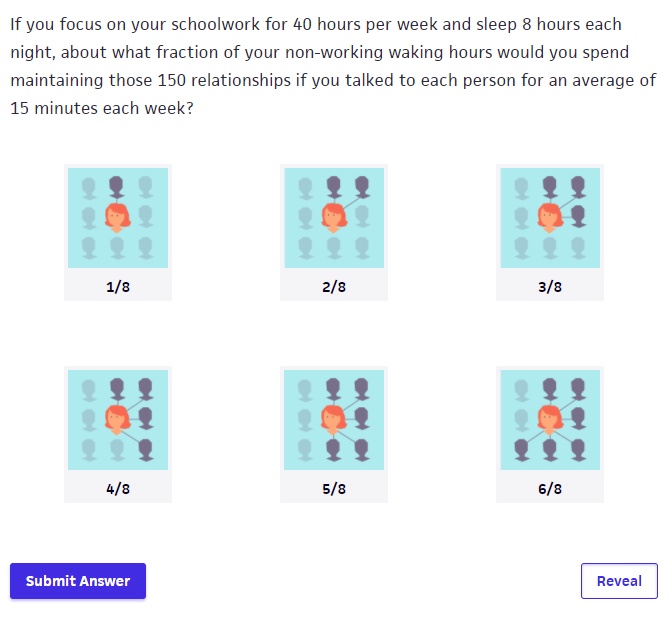
Below that is the option to Add an Image. Here's an example of a question with images.
IMPORTANT: Any image must be of the size 150 x 150. If it isn't it might get distorted.
Anything written in the "Answer" block will appear below the image.
IMPORTANT: If you use an image you have to use one for the rest of the choices.
IMPORTANT: You cannot use images for the Checkbox answer type.
Using the enter key in Question Blocks doesn't work well. Put any large bodies of text in a text box above and place the specific question in the question block.
When making picture choices, try to use multiples of 3 since three fit in a row.
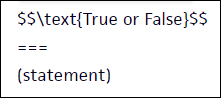
When making a true or false question, write the following above the statement: